


Key takeaways
- A Chrome extension uses HTML, CSS, and JavaScript to introduce new tools, customize browsing, and change the browser’s default behavior.
- To develop a Chrome extension, plan its functionality first, structure the project, configure Manifest V3, create the interface, add scripts and API connections, then load and test it locally.
- Some of the most common use cases for Chrome extensions include sales prospecting, customer support, content creation, market research, and credential management.
- Developing a simple utility Chrome extension can cost anywhere from $250 to $3,000, whereas complex enterprise extensions can range from $25,000 to $80,000 or more.
Google Chrome has become much more than a browser for visiting websites. Its extension ecosystem gives businesses a way to change how the browser works, add features that are not available by default, and build tools for specific needs. From a small utility that saves a few clicks to an extension connected to a business application, there’s a lot that can be done within Chrome.
For businesses, the decision to build a Chrome extension usually starts with a specific problem rather than simply wanting another browser tool. They may want to bring part of an existing application into Chrome, automate a repetitive task, or give users quicker access to a particular feature. When an extension makes sense for that use case, understanding how the development process works helps you assess what is involved before starting the project.
A browser extension development service can help when the project requires custom features or integration with existing software. In fact, according to the HTF Market Intelligence report, the global Chrome Extensions market is expected to reach $5.0 billion by 2033.
In this guide, we’ll explain how to make a Chrome extension, covering the setup, Manifest V3, coding, testing, and the steps needed to get it ready for use.
What is a Chrome extension?
A Chrome extension is a small program built with HTML, CSS, and JavaScript that adds new features to Google Chrome or changes how the browser behaves.
Businesses use extensions for all kinds of things, from making everyday tasks easier to adding features for work, such as checking customer details or working with another business system.
What a chrome extension can do, and the API behind it
- Read or change page content using content scripts and chrome.scripting
- Respond to browser events, such as installs and tab changes, through a service worker
- Save settings and user data with chrome.storage
- Work with open tabs and windows through chrome.tabs
- Send data to your own backend with fetch(), once host_permissions allows the domain.
Most of these APIs need a matching permission declared in manifest.json, such as “storage” or “scripting”.
Core architecture components of a Chrome extension
A Chrome extension consists of several components that work together. The manifest defines the extension’s configuration and capabilities, while scripts and Chrome APIs handle browser events, interact with webpages, manage data, and implement the extension’s behavior.
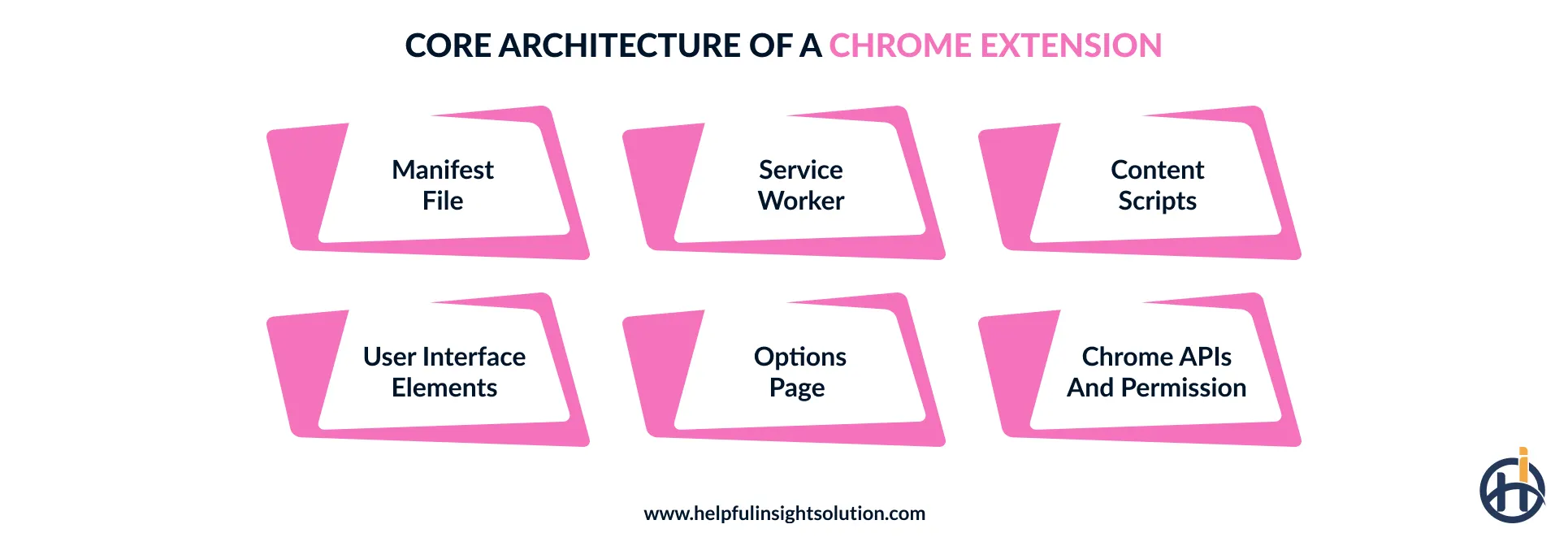
The main Chrome extension components are:
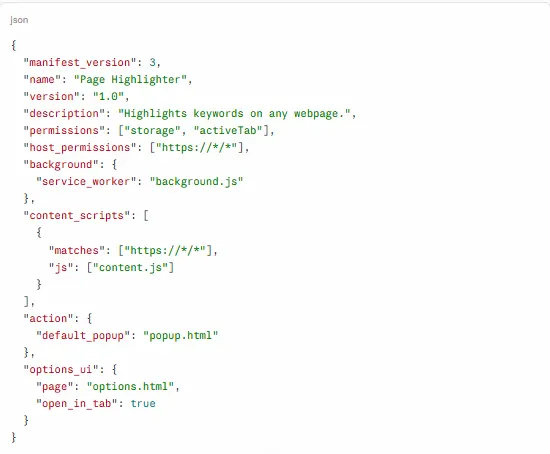
Manifest file
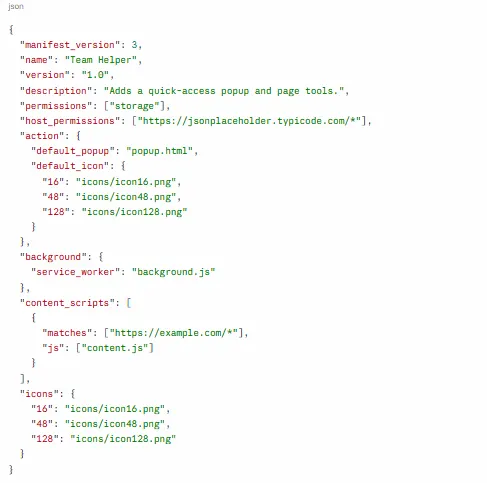
The manifest.json file acts as the configuration layer for a Chrome extension. It defines the extension’s metadata, capabilities, and components by declaring keys such as background, content_scripts, permissions, host_permissions, and action.
Service worker
In Manifest V3, the service worker manages an extension’s background logic. It responds to browser events, coordinates tasks, and communicates with other extension components such as content scripts and the popup using Chrome’s extension APIs.

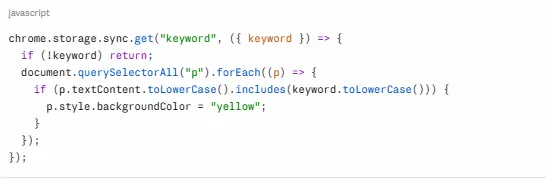
Content scripts
Some extensions need to do more than show a popup. They need to work directly with the webpage. That is where content scripts come in. They can inspect page elements, change what is displayed, or react to actions on the page. Their access is controlled by the extension’s permissions and match patterns.
User interface elements (Popup and side panel)
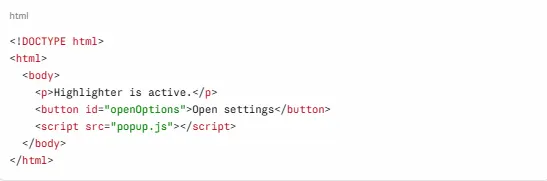
A popup is the little window that opens when you click an extension’s icon in Chrome. It can contain a few controls or settings. When that space is not enough, a side panel is useful because it can remain open next to the webpage. Both can be built with HTML, CSS, and JavaScript.
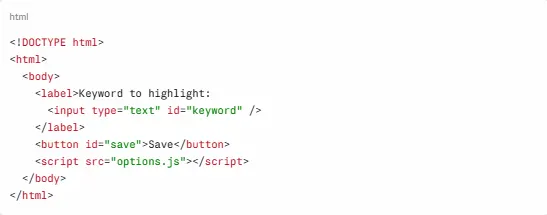
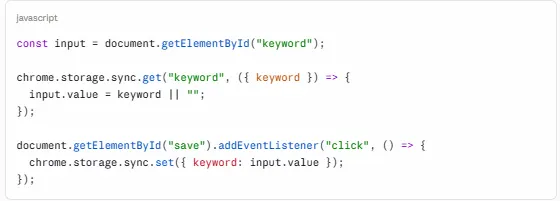
Options page
Some extensions need more settings than a popup can comfortably provide. An options page gives those settings their own interface, built with HTML, CSS, and JavaScript. In Manifest V3, the page can be registered through options_ui in manifest.json and connected to extension storage.
Chrome APIs and permissions
Chrome APIs give an extension access to specific browser features. Permissions decide what the extension is allowed to use. For example, chrome.storage can save settings, while chrome.tabs can work with information about the browser’s open tabs.
How to make a Chrome Extension: Step by step
A working extension needs more than a few files and a popup. The development process includes setting up Manifest V3, creating the required scripts, connecting Chrome APIs, and testing each part. Let’s walk through how to build a Chrome extension step by step.
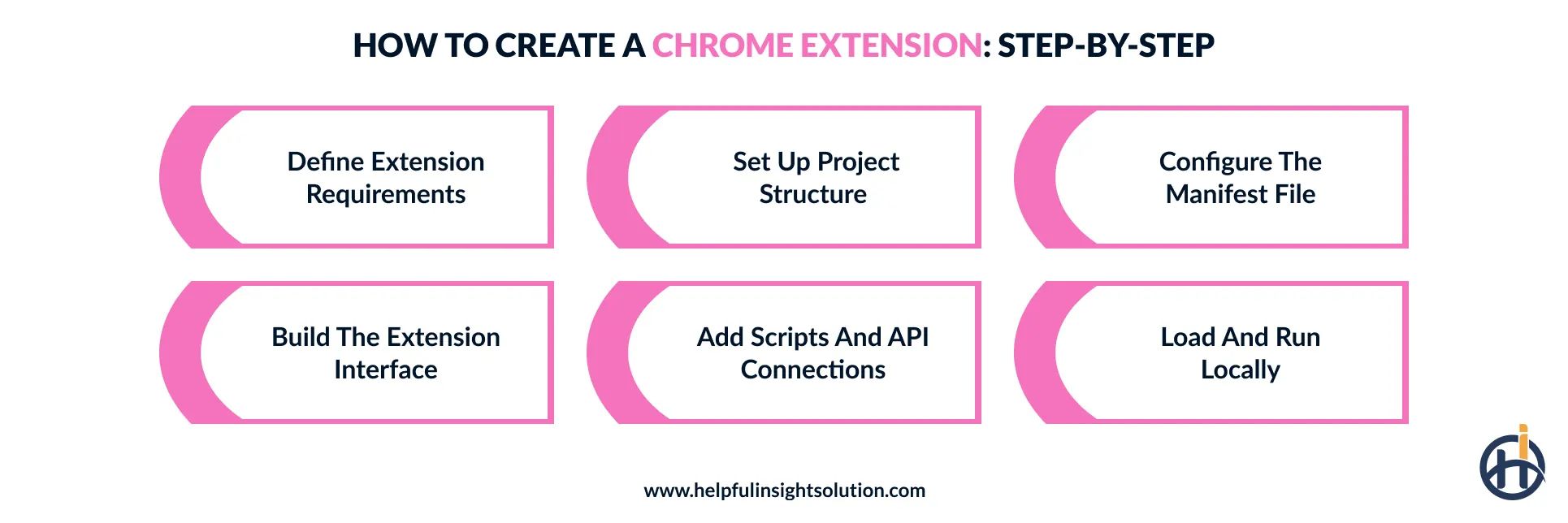
Define extension requirements
First, get clear on the small job your extension needs to handle. Maybe it reads selected text, changes something on a webpage, or opens a tool from the browser toolbar. This choice will later affect your Chrome APIs, permissions, and extension files.
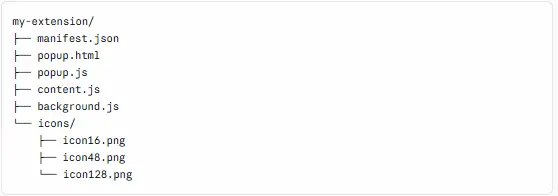
Set up project structure
Keep the project structure simple at this stage. Your main folder can contain manifest.json along with the popup and its supporting files. If you’re working with webpage content, create a separate content script for that logic instead of putting everything into the popup’s JavaScript.
Configure the manifest file
Open manifest.json and describe how Chrome should load the extension. Set the name and version, choose Manifest V3, and add only the permissions your features need.
If you have a popup or background logic, their file paths are also declared here.
Build the extension interface
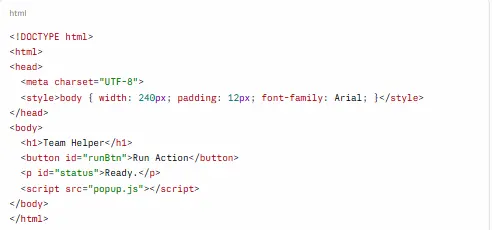
Build the popup just like a small webpage. Add the elements your extension needs, then use CSS to arrange and style them. If a button triggers an action, give it a clear purpose and connect it to JavaScript later. This is a basic part of Chrome extension development.
popup.html
popup.js

Add scripts and API connections
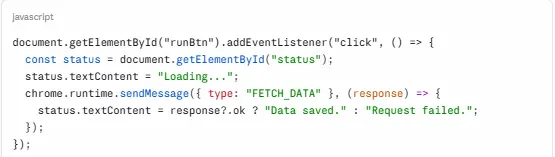
This is where the interface starts doing something useful. Write the required JavaScript and connect it with the popup elements you created earlier. If your extension needs browser features, use the relevant Chrome APIs. For example, chrome.storage can save settings, while messaging lets different extension scripts exchange data.
For dedicated developers, keeping these connections organized from the beginning makes it easier to add features later without turning the extension code into one large script.
manifest.json

popup.js
background.js
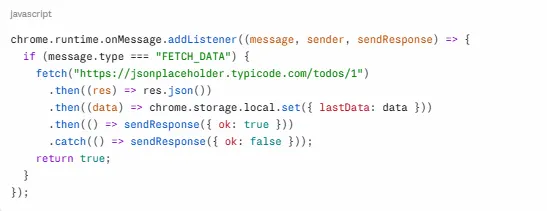
content.js

Load and run locally
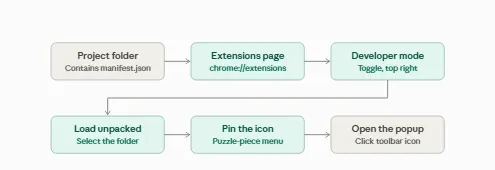
With the project files in place, it’s time to run the extension locally. Open chrome://extensions and switch on Developer mode. Select “Load unpacked” and point Chrome to your project folder. After loading it, use the extension like a normal browser tool and watch for errors in Developer Tools.
How to test and debug a Chrome extension before launch?
A working popup doesn’t always mean the extension is ready. Test its actual behavior on supported webpages, reload it, check different user actions, and inspect console logs and service worker errors in Chrome DevTools. This helps catch problems before publishing the extension.
Let’s go through the important steps to test the browser extension before publishing it.
Debug each component in DevTools
Open Chrome DevTools for the part you’re testing and check its logs separately. Inspect the popup, content script, and service worker one at a time. If you’re learning to build a Chrome plugin, this makes it easier to trace where an error starts.
Verify permissions and site access
Check the permissions listed in manifest.json and make sure they match the extension’s actual features. Test the extension on its target websites as well, especially if you’re using host permissions or content scripts during Chrome browser extension development.
Reload and Retest After Changes
Update your code, reload the extension from chrome://extensions, and repeat the test. This is especially useful when you make a Google extension and need to catch small changes quickly.
Check speed and memory use
Use the extension normally for a while instead of checking it right after launch. Keep a few tabs open, then look at CPU and memory usage in Chrome. If the numbers stay high, check which script is running in the background.
Test in real-world conditions
Give the extension a proper real-world test before publishing it. Try different page types, open new tabs, reload existing ones, and enter unexpected inputs. Pay attention to how the Chrome APIs and extension features respond in each case.
Why build a custom Chrome extension for your business?
A custom Chrome extension can be useful when ready-made tools do not fit your business needs. Here are a few reasons why building a Chrome extension may be worth considering:
Automate repetitive workflows
There are plenty of small browser tasks that employees end up repeating throughout the day. With a business Google Chrome extension, actions like form filling, data collection, and page navigation can happen automatically. If the process changes depending on what appears on the screen, AI agents in Chrome extensions can add decision-making to the workflow instead of relying only on fixed instructions.
Centralize browser-based operations
When employees work with several browser-based business tools, moving between tabs can become part of the job. A Chrome extension can put the information they use most often in one place. For example, a side panel could show customer details while the employee works on another website.
Connect existing business systems
Businesses often use a CRM, ERP, or internal system alongside Chrome. Writing Chrome extensions can connect those systems to the browser, so employees can view or send information without switching between applications.
For instance, an extension could pull a customer’s policy details from an insurance CRM and show them while an employee is working on the customer’s website.
Strengthen customer interactions
Customer interactions improve when relevant information is easy to access during a conversation. Chrome browser plugin development can keep that information available within the browser, helping an organization respond more quickly and consistently. It also allows the experience to be connected with existing customer service systems.
Common use cases of Chrome extensions for businesses
There is no single way to use a Chrome extension in a business setting. Custom extensions can support automation, productivity, data handling, customer service, and browser-based workflows. Some of the popular applications of Chrome extension development are covered below.
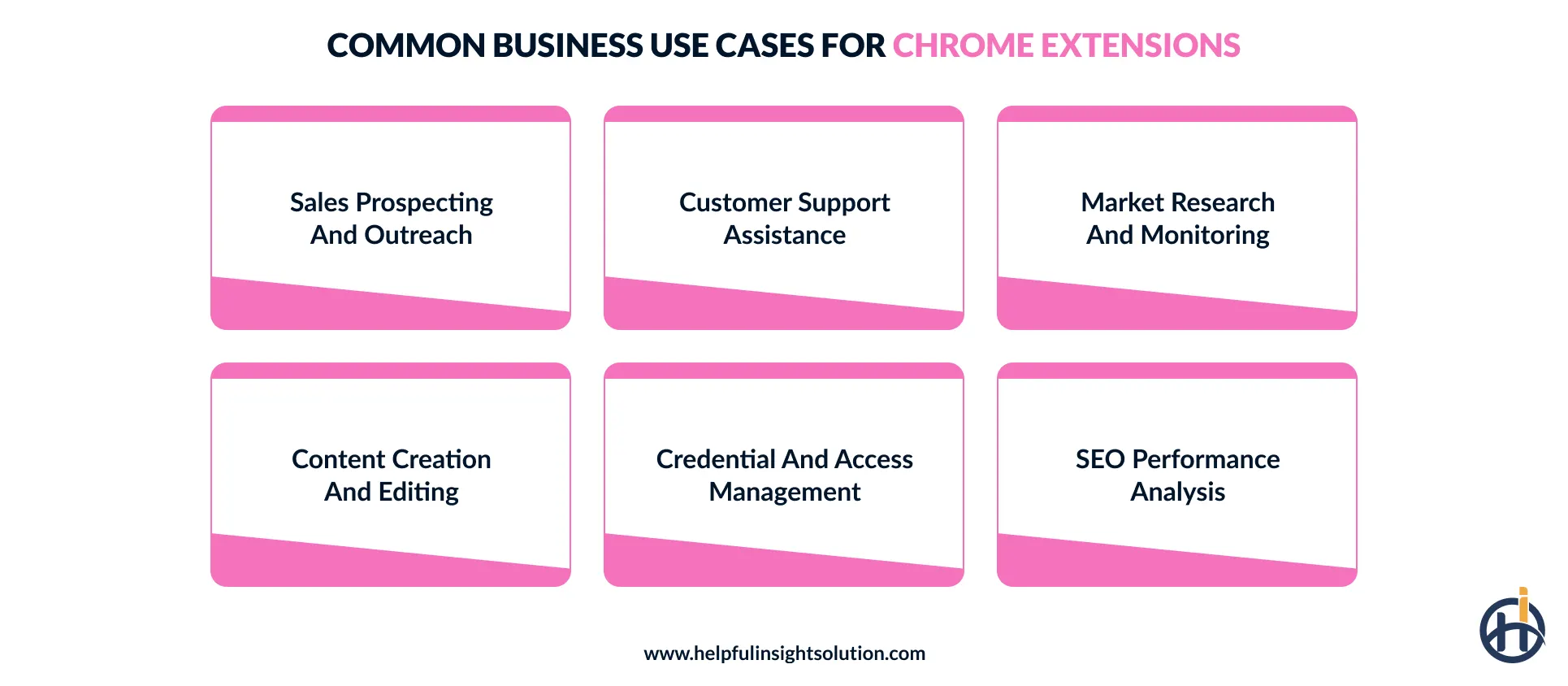
Sales prospecting and outreach
Finding new prospects is only one part of sales research. The details still need to be collected and added to the CRM. A Chrome extension can take permitted information from a webpage and send it to the right system through an API. This saves some manual work when creating lead records. It can also keep track of activity, making later outreach easier to manage.
Customer support assistance
Support agents spend half the day jumping between the ticket, the order system and a reply box. Businesses that build a Chrome plugin can pull all of that into one side panel next to the ticket. Generative AI features of a Chrome extension handles the slow parts such as a short summary of a long thread, a draft reply, a softer rewrite of a blunt one. The agent just reviews and sends.
Market research and monitoring
A lot of market information is already available on public websites. The problem is keeping track of it. A Chrome extension can check selected pages and pick up permitted changes. The data can be saved to a spreadsheet or database. Alerts can also be added for things like price or product changes.
Content creation and editing
There are times when the content writers have to constantly switch between the grammar checker and other tools. A Chrome extension can keep things simpler by checking text on the same page. It could fix grammar, shorten a paragraph, or use an AI tool to rewrite selected text.
Credential and access management
Managing many business logins can become difficult when passwords are stored in different places. A Chrome extension can provide a secure way to access stored credentials and fill them when needed. Security features such as MFA, access controls, and encrypted data storage can be added as part of Chrome extension security.
SEO performance analysis
A Chrome extension can be built as a simple SEO checker. When a page is open, it can look at the HTML and find important page details. Missing titles, empty alt text, headings, and meta information can be shown in the extension. This gives a quick look at the page before a deeper SEO review.
Chrome extension vs web app: Which should a business build?
Not every browser-based product needs the same approach. Some work better as a Chrome extension, while others need a full web app. Let’s compare the two and look at what matters when choosing between web app development and extension development.
| Factor | Chrome Extension | Web App |
| Primary Purpose | Browser-based tasks and workflows | Broader business applications |
| Development Cost | Generally lower for focused tools | Usually higher for larger applications |
| Development Time | Often faster for focused use cases | Can take longer for complex products |
| Security and Control | Browser permissions require careful management | More control over application infrastructure |
| Integration Needs | Strong for browser and web-service integrations | Supports APIs, databases, and external services |
Tools and technologies used to build chrome extensions
The tools used for how to create a Chrome extension are mostly familiar to web developers. HTML, CSS, JavaScript, Chrome APIs, and Chrome DevTools cover the basics, while Node.js and npm can help with larger projects.
Here’s a quick look at the main technologies and what each one is used for.
| Technology Area | Tools and Technologies |
| Programming Languages | JavaScript, TypeScript, HTML, CSS |
| Frontend Frameworks | React, Vue.js, Svelte |
| Development and Debugging | Chrome DevTools, VS Code, Chrome Extensions page |
| Package Management | Node.js, npm, pnpm, Yarn |
How much does it cost to create a Chrome extension?
The cost of Chrome extension development can vary quite a bit depending on the project scope. A simple utility typically falls between $250-$3,000, while a mid-tier/SaaS integration may cost $3,000-$25,000. For a complex enterprise extension, the budget can reach $25,000-$80,000 or more.
The price can change based on what goes into the extension. A basic interface may cost less, while Chrome APIs, third-party integrations, login features, backend work, testing, security, and maintenance add to the development effort. The team’s location can also make a difference.
It is important for businesses to understand that the cost to develop software and an extension can be very different, mainly because the scope is not always the same. A small extension may be fairly straightforward, while one connected to several services can take much more development time.
Common mistakes to avoid when building a Chrome extension
When building a Chrome extension for business use, a few development mistakes can create unnecessary work later. Broad permissions, weak security, limited testing, and poorly organized code are some issues worth watching.
Here are the common mistakes businesses should avoid during chrome browser extension development.
Requesting unnecessary permissions
Take a second look at the permissions in manifest.json before release. If the extension never uses a particular permission, remove it instead of asking users to approve unnecessary access.
Using outdated extension patterns
Check the current Manifest V3 requirements before development starts. Relying on older patterns can leave you with code that needs reworking later.
Putting all the code together
Keep popup code, content scripts, and service worker logic separate. Mixing everything into one place can make Chrome addon development harder to maintain as the project grows.
Neglecting extension security
Don’t wait until launch to review security. If you develop a plugin for Chrome, protect API credentials, check permissions, and validate data from external services during development.
Ignoring future maintenance
An extension may need updates as Chrome APIs and websites change. Building everything as a quick one-off can make later fixes harder than they need to be.
Conclusion
For a business, a Chrome extension can bring a useful feature closer to customers without asking them to open another application. It can work with existing web services, simplify a particular task, or fit into an existing workflow. The possibilities are also expanding as AI-powered Chrome extensions become better at handling repetitive tasks and assisting users during their daily browser activities.
We hope this Chrome extension tutorial has given you a clearer idea of the development process and what goes into turning an extension concept into a working product.
If you’re planning to build an extension for your business, our web development company can help take the project from idea to launch. With 10+ years of experience, our team handles extension architecture, UI development, Chrome API integration, and backend connections, while keeping the solution aligned with your business requirements.
Share your project details with our team, and let’s discuss how we can help you build a Chrome extension that fits your needs.
Frequently Asked Questions
A basic or no-code prototype may take 20 minutes to 1 week or more, while a mid-complexity build can take 2 to 4 weeks. Complex extensions may need 2 to 5+ months or longer because of APIs, backend work, testing, and security.
Yes, a Chrome extension can connect with the software your business already uses. APIs, backend services, and OAuth can handle the data exchange and user login.
Publishing a Chrome extension involves a few steps: create your developer account, package the extension files, and upload the ZIP through the Chrome Developer Dashboard. You’ll also need to provide store listing details before submitting the extension for review.
Yes, Chrome extension can use AI-powered features. Developers may use Chrome’s available on device AI capabilities or connect the extension with external APIs such as Gemini, OpenAI, or Anthropic.